A practical guide for new users. Follow the sections in order the first time you open the app, then jump back whenever you need a refresher.
Getting started
Musicalysis is a music practice workspace in your browser. You play or sing, and the app lights notes on a piano or guitar, shows theory on a staff, and helps you practice with media, games, Connect, and an AI assistant.
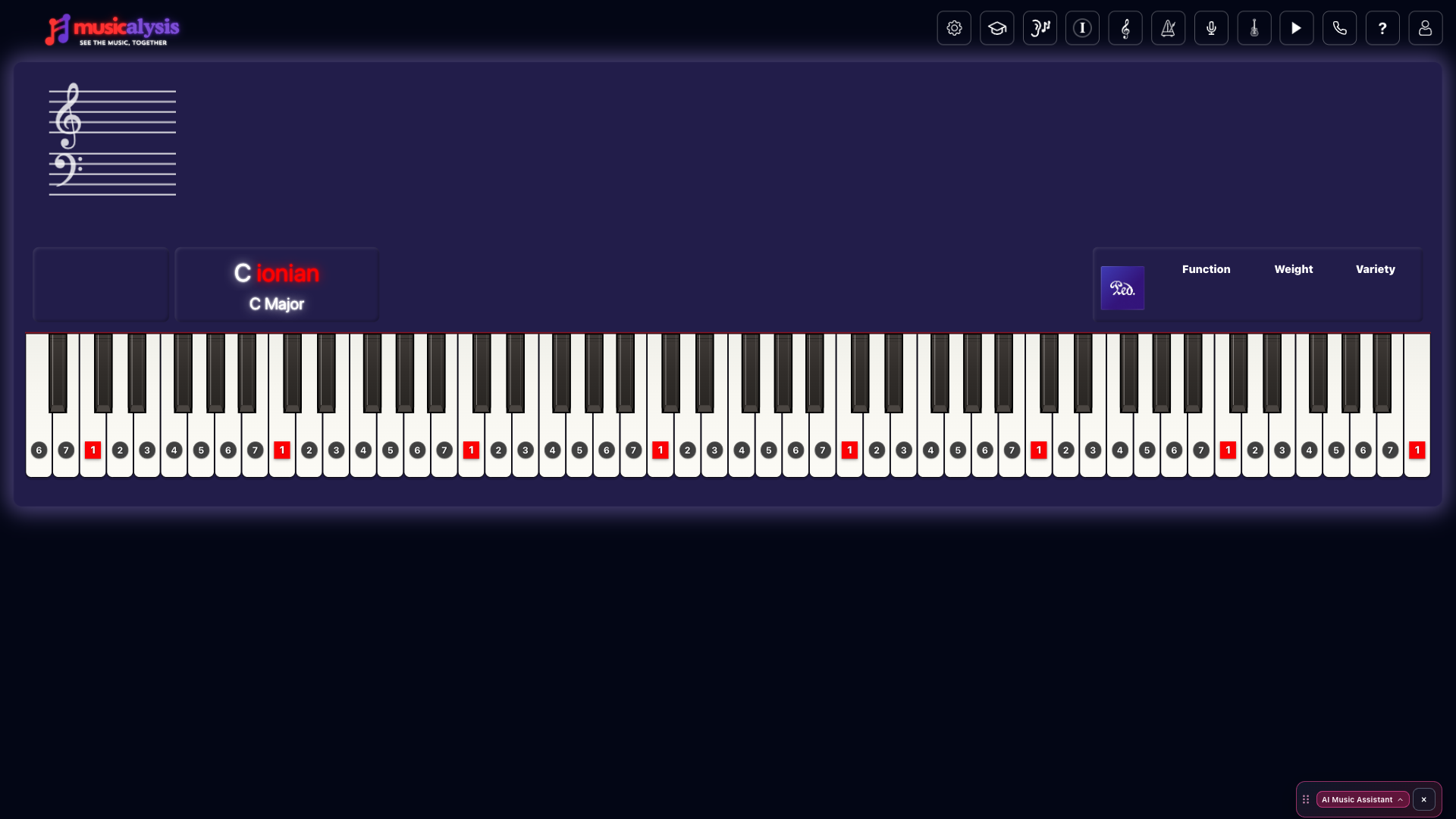
The main workspace today: toolbar on top, staff and theory readout, live piano with scale-degree labels, and the AI Music Assistant dock.
Log in. When the browser asks for microphone or MIDI access, allow it so the keyboard can react to your playing.
3
Open the ? menu and start Quick start, or open Musicalysis Academy (graduation cap) for short How-to lessons.
What you will see first
The top bar holds the main tools. The large area below is your instrument. Click keys, play MIDI, or sing into the mic to see notes light up.
Settings Theory & staff Help & Quick start Account
Tip:
Feature availability depends on your Free, Lite, or Plus plan. When something needs a higher plan, Musicalysis shows an upgrade prompt in the app. Pricing details live on the pricing page.
Your workspace
Everything centers on the live instrument and the toolbar above it.
Toolbar icons open Settings, Academy, games, staff, metronome, Voice, instrument switch, Media, Connect, Help, and Account.
Piano and guitar
Click the on-screen piano, use your computer keyboard map, connect MIDI, or use the microphone.
Switch between piano and guitar styles from Appearance or instrument controls when your plan allows.
Open Appearance from Settings to change themes and (on Plus) custom key animation colors and webcam backgrounds.
Staff, theory, and metronome
The traditional staff can show chords and notes as you play. Expand it when you want to freeze chords over time.
Theory labels, chips, and detectors live under the theory / staff tools in the toolbar.
Open the metronome from its toolbar icon. Free includes a subdivision metronome. Lite and Plus add geometric metronome shapes.
Voice tools (tuner and vocal range) are under the Voice / microphone related menus.
Input sources
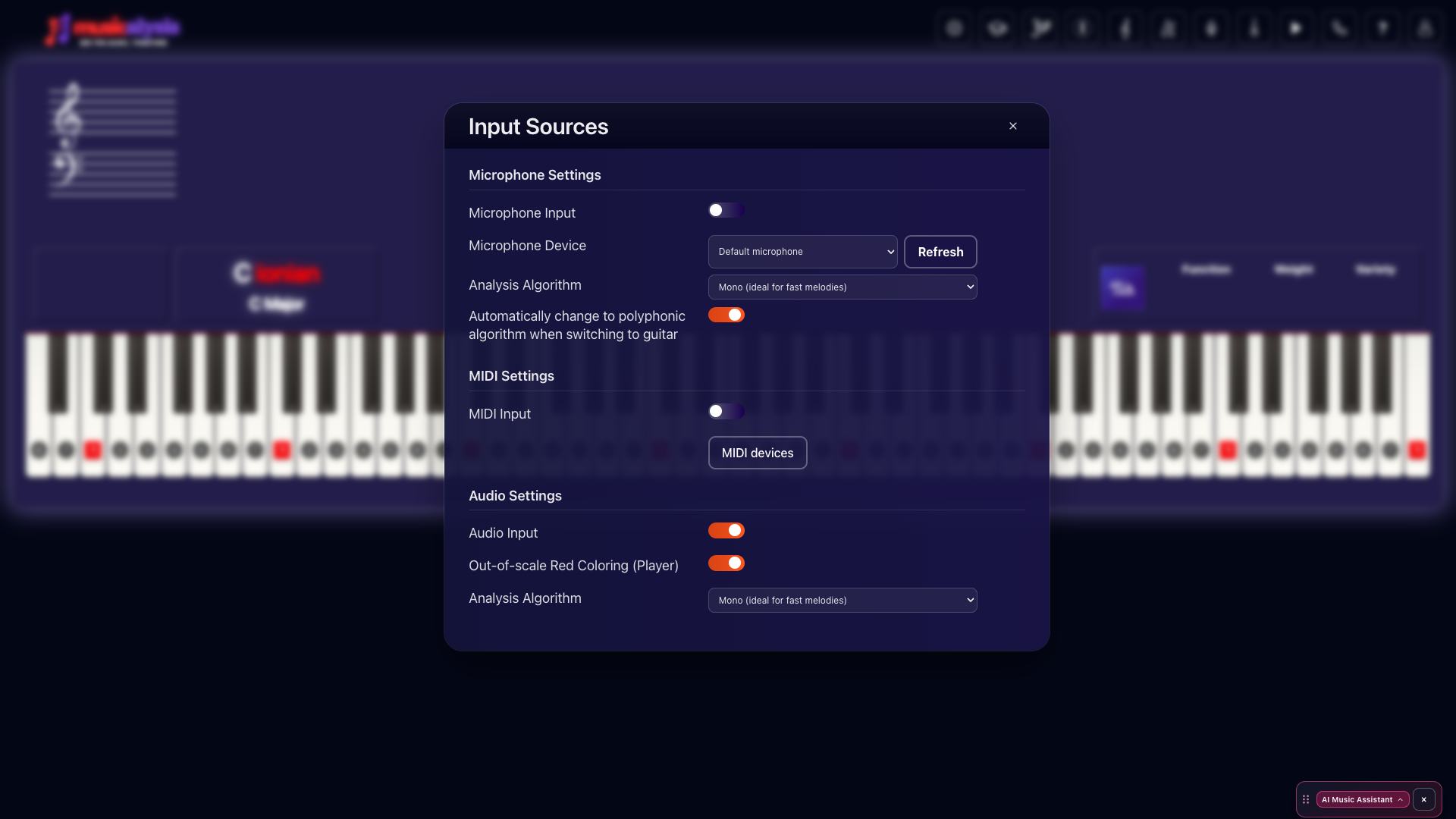
Open Settings (gear) → Input Sources to turn each input on or off and pick devices. Several inputs can stay on at once so MIDI, mic, and media can light the keyboard together.
Input Sources: microphone device and algorithm, MIDI, and media audio detection. Multiple inputs can stay on together.
Default highlight colors
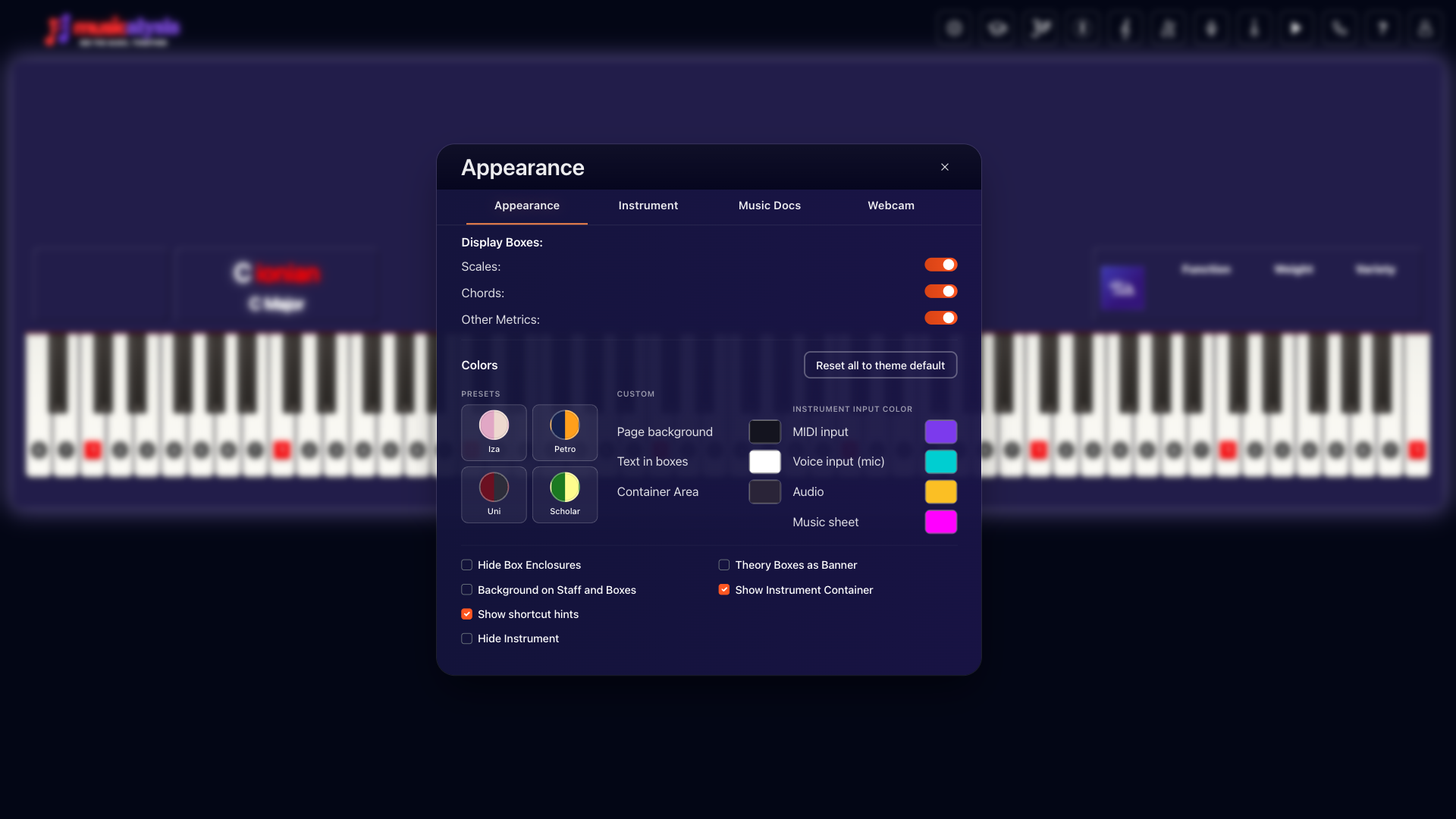
These are the default animation colors. On Plus you can change them under Settings → Appearance → Instrument input color.
MIDI (violet) Mic / voice (aqua) Media player (gold) Sheet highlights (magenta)
Appearance → Instrument input color: MIDI, Voice (mic), Audio (media), and Music sheet.
Microphone
Toggle Microphone Input in Input Sources, or use the toolbar mic control. With the piano focused, the V key also toggles listening.
Choose your microphone device and refresh the list if a new headset was plugged in.
Analysis Algorithm can be monophonic or polyphonic. Polyphonic helps when more than one pitch is present (for example chords on guitar). You can auto-switch to polyphonic when you change to guitar.
MIDI
Enable MIDI Input, allow browser MIDI access, then select your controller.
MIDI is polyphonic by nature, so chords and multi-note lines show on the keyboard and staff.
You can assign colors per MIDI device where the MIDI options allow it.
Computer keyboard
With the piano workspace focused, your computer keys can play notes (see Shortcuts in the ? menu). This is separate from MIDI hardware.
Media player audio
When the media player is open and playing a file (Lite or Plus), Musicalysis can highlight detected pitches on the keyboard. For cleaner melody tracking on mixed songs, separate stems first on Plus and follow a vocal or other clear stem.
Media player & stems
Open the media player from the play icon in the toolbar (Lite or Plus).
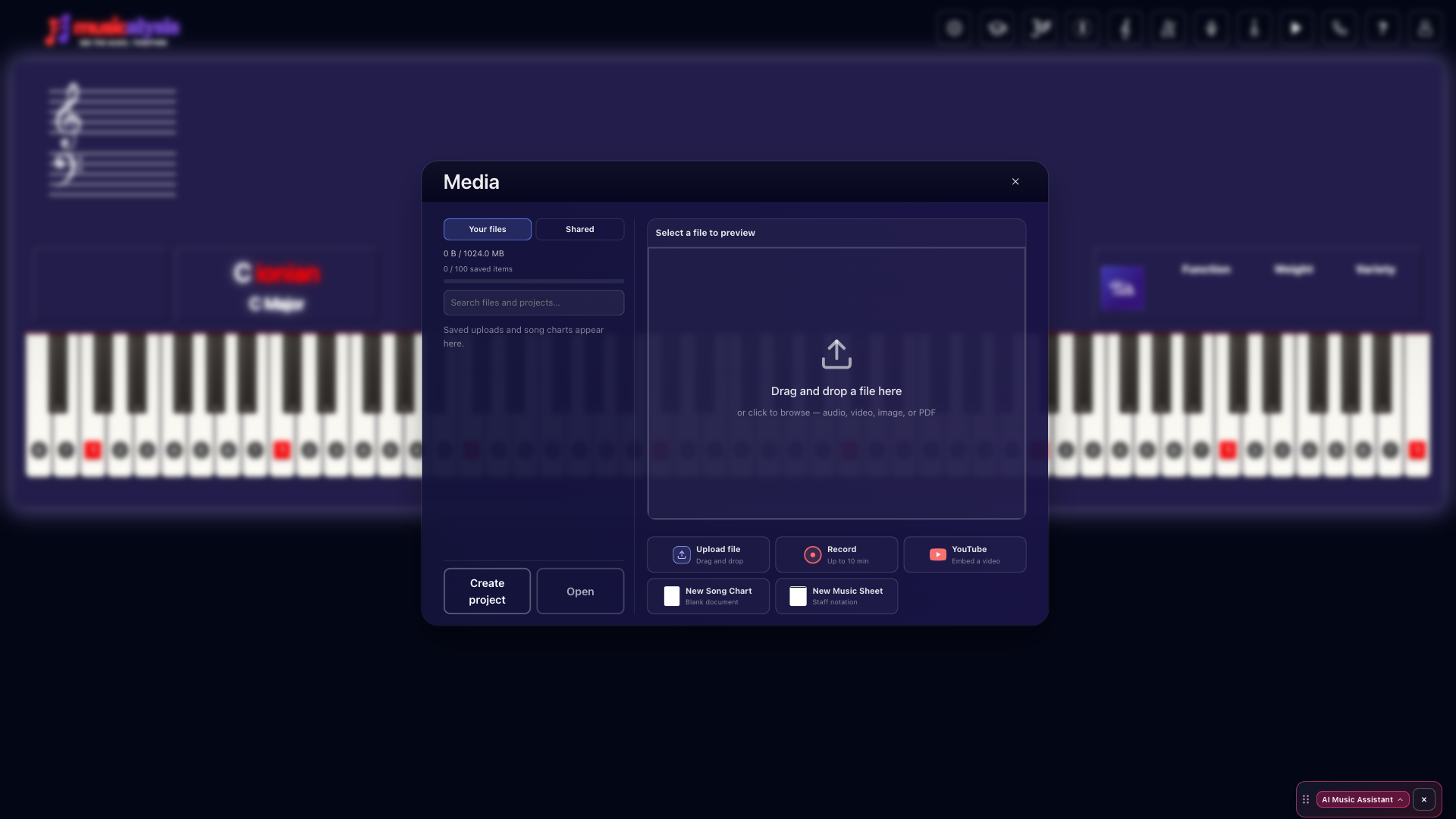
Media library: upload or record audio, embed YouTube, and start a Song Chart or Music Sheet. Saved files appear under Your files.
Playback
Upload audio or video, scrub the waveform, set loops, and change speed or pitch.
Add section markers and practice along with Song Sheets when you use them.
You can record practice takes into your library within the app’s recording limits.
Stem separation (Plus)
Separate a mix into parts such as vocals, drums, bass, guitar, keyboard, and instrumental. While a job runs you will see simple progress steps like uploading, preparing, processing, and almost done. Finished stems stay in your media library. Credits and usage appear under Account → Stem. Plus also supports stem visualization on the workspace.
Song Sheets & Music Sheets
From Media, choose New Song Chart (lyrics and chords) or New Music Sheet (staff notation on Plus).
Song Sheets
Use Song Sheets for lyrics and chords: sections, transpose, Roman numerals, BPM, and optional sync with media. You can capture chords from the live instrument into a sheet. Styling options live under Appearance → Song Sheets.
Music Sheets
Music Sheets are traditional notation documents on Plus. They are separate from Song Sheets and from the live staff on the main workspace. Academy includes a How-to lesson that walks through notation.
Library
Eligible uploads, sheets, and annotations save to your media library so you can reopen them later. Export options follow your plan and show an upgrade prompt when needed.
Video calls
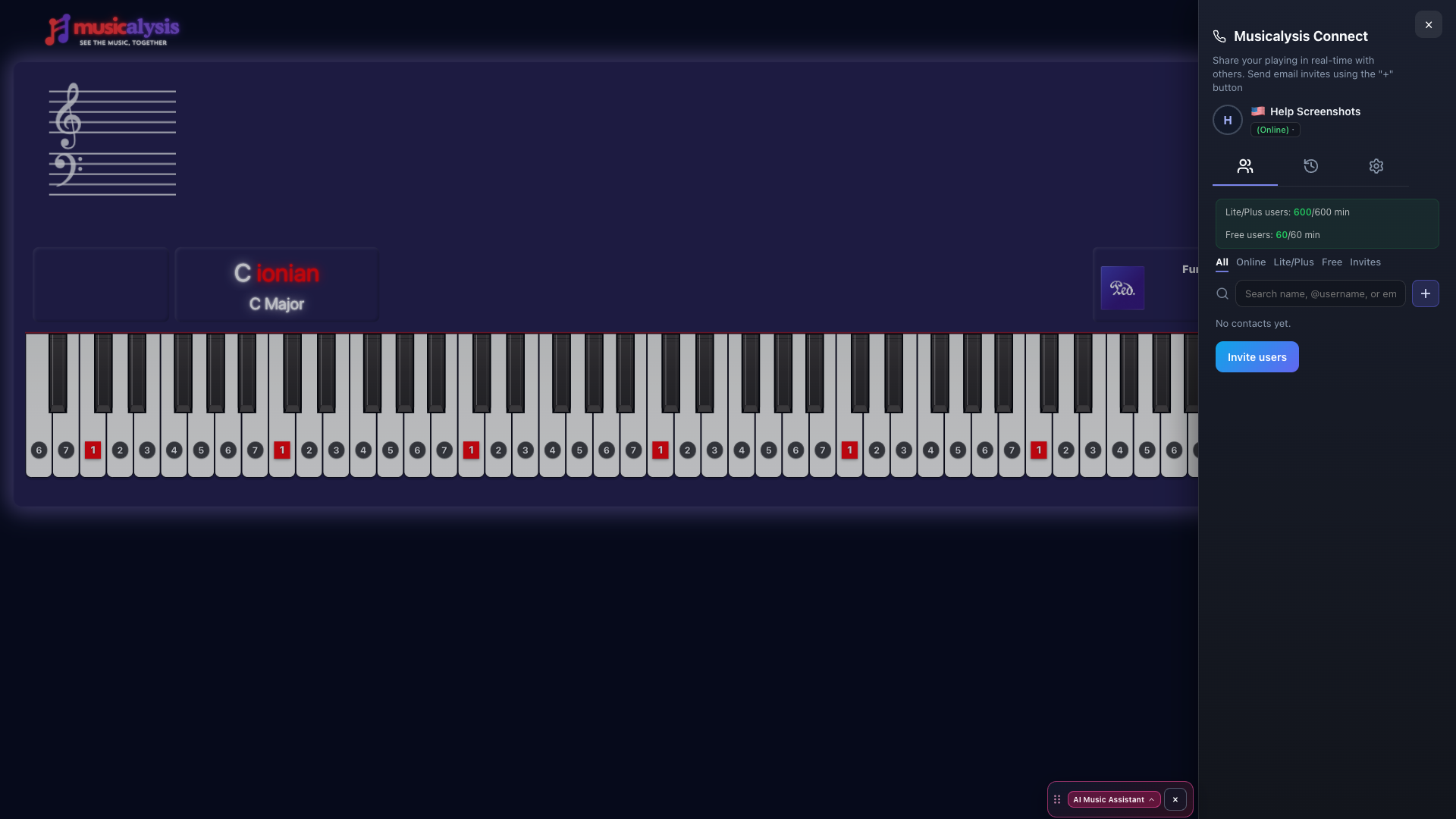
Connect lets you invite other Musicalysis users, make 1:1 practice calls, chat, and share a public profile. Open it from the Connect icon.
Connect panel: your online status, contact filters, search, and Invite users. Session minutes for Lite/Plus and Free hosts appear at the top.
Invites and contacts
1
Search by username or email and send an invite with an optional note.
2
They accept or decline in Connect → Invites.
3
While your invite is pending, use the row menu to cancel it.
Calls
From a contact or their profile, use the phone control to start a Connect call. Notes and instrument state sync between you. You can use in-app video/audio or share an external meeting link from Connect settings. Free accounts can join calls hosted by Lite or Plus users, with limits on starting Free-to-Free calls. When a limit applies, the app explains it with an upgrade prompt.
Chat and messages
During a call, use session chat. Outside calls, message accepted contacts with direct messages on every plan, including Free. You can mute chat sounds in the chat dock.
Online notices and profiles
When a contact comes online, Musicalysis can show a notice and play a short sound. Mute both under Connect → Settings → Mute notifications when contacts come online.
Public profiles can include a photo, bio, and optional profile audio. From a profile you can Call or Invite. Click outside the window or press Esc to close it.
AI Music Assistant
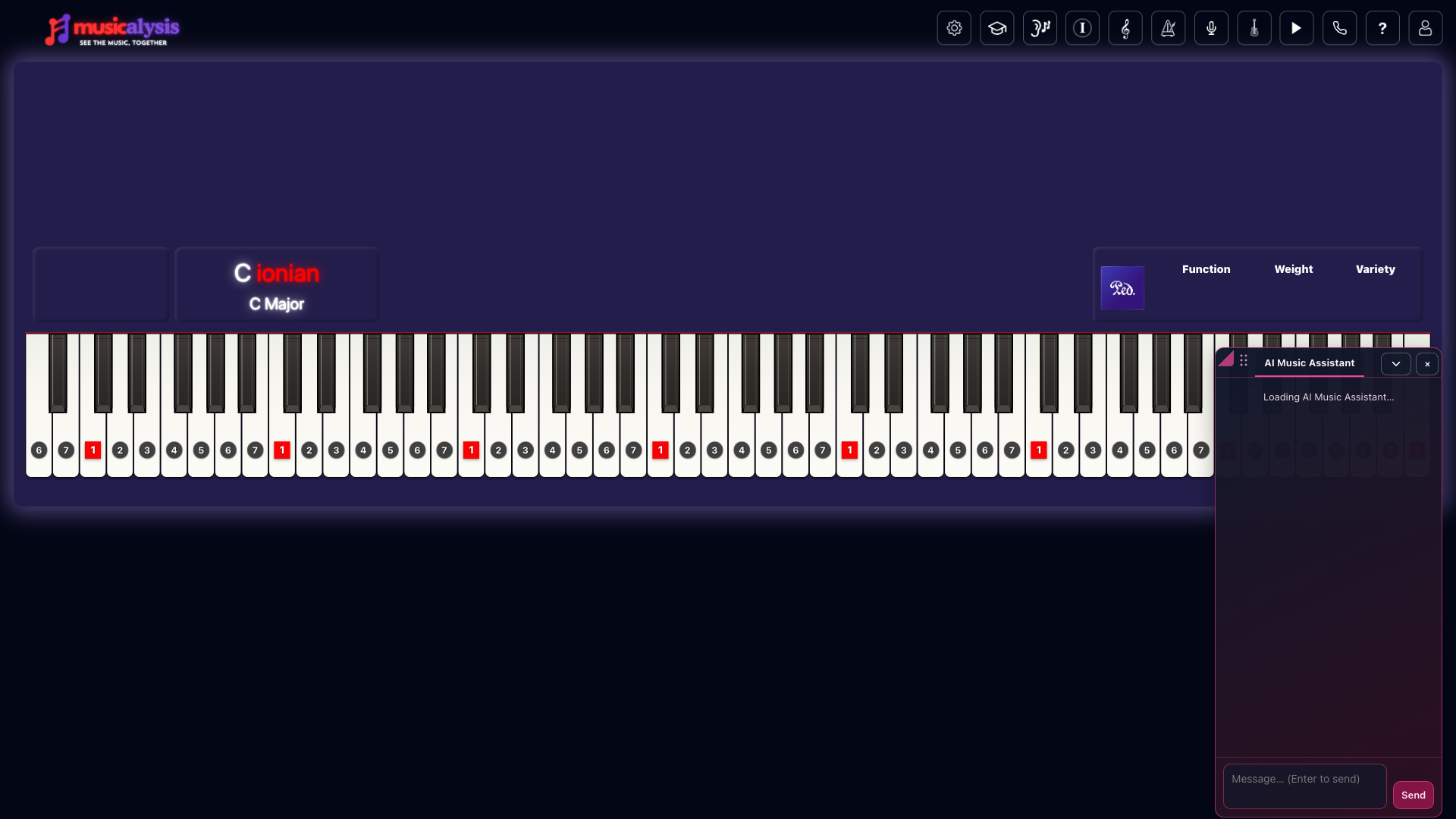
On Lite and Plus, open the AI Music Assistant from the help menu or the assistant dock. Ask theory questions, request demos, or follow Academy steps. It can highlight keys, set the metronome, and open panels for you.
The AI Music Assistant dock sits over the workspace. Type a message and press Enter or Send.
Daily reply limits depend on your plan (shown in the upgrade cards and Account area). The assistant can open Account for you, but only you can change payment or cancel a subscription.
Learning Games
Open the ear / games icon in the toolbar (Lite or Plus). Free accounts see an upgrade prompt.
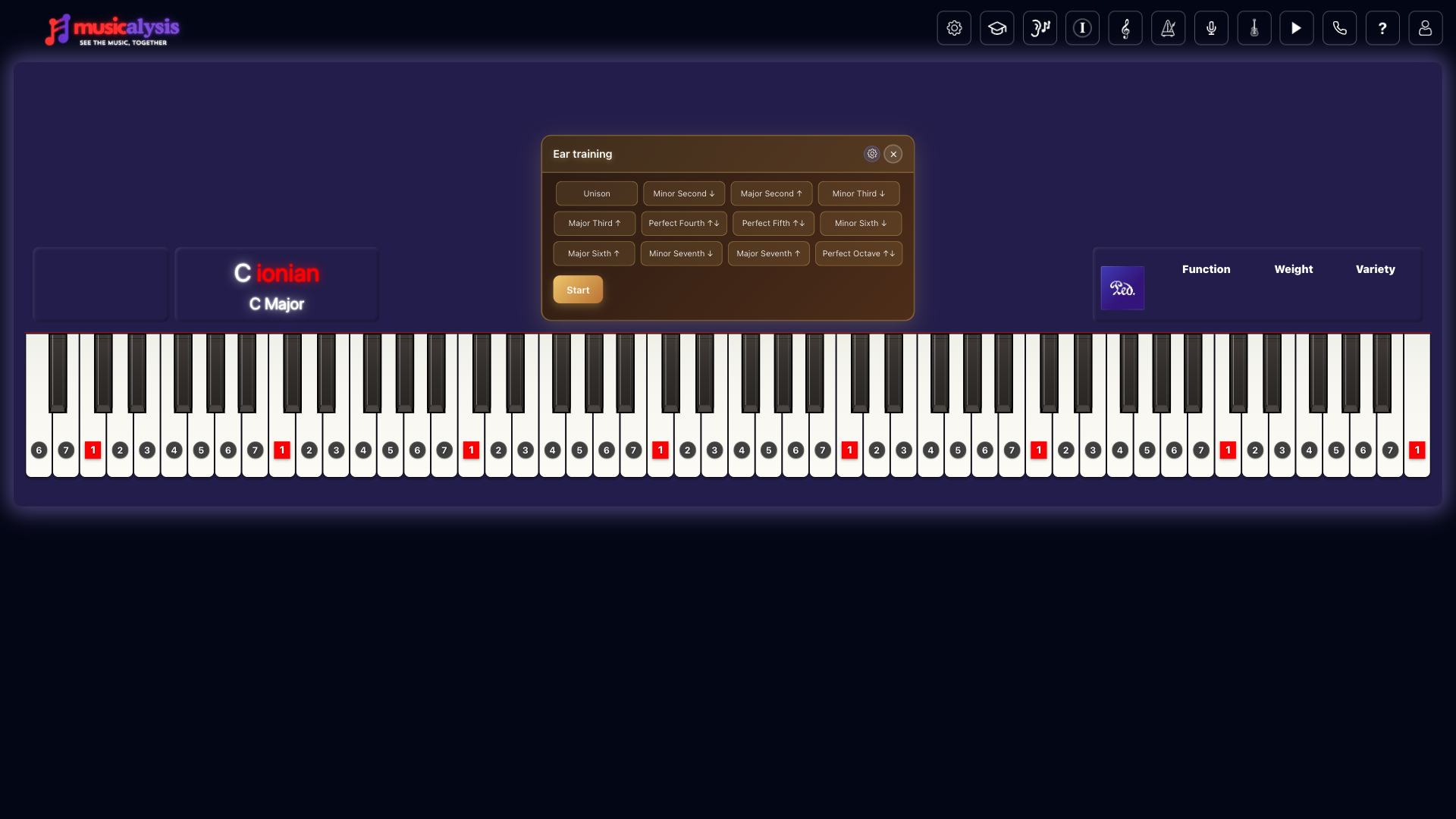
Ear training: pick intervals and press Start. Other games open from the same toolbar area.
Interval quiz for ear training
Singing scales with the microphone
Piano scales on the on-screen keyboard
Connect duels to challenge a contact
Score card for practice stats from the Games hub
Account & email
Account Details and Billing
Open your profile menu, then Account. Use the Account tab for name, email, country, Connect username, assistant language, timezone, and password. Use the Plan tab to see Free, Lite, or Plus and to subscribe, change, or cancel through Stripe. Use the Stem tab on Plus for stem credits.
Email preferences
Emails from Musicalysis include an Unsubscribe link. That page lets you turn off categories one by one:
Feature releases
Community events
Videocall and Connect invite emails
Shortcuts & troubleshooting
Built-in references
? → Shortcuts for the full keyboard map
Mode Color Map for mode color meanings
With the piano focused, arrow keys and number keys drive many scale and mode actions. V toggles mic listening. See Shortcuts for the complete list.
If something does not work
MIDI silent: allow MIDI in the browser, pick the device under Input Sources, and reconnect the cable.
Mic not lighting keys: check OS and browser mic permission, then toggle the toolbar mic or press V.
Connect call will not start: both people need to be online and logged in. Leave any active call before starting another. Free-to-Free hosting is limited.
Invite cancel: use Cancel invite on the pending row. If the invite already finished on the server, the pending badge clears.
Cannot message someone: direct messages need an accepted mutual contact, not only a pending invite.
Contact support
From the ? menu in the app you can suggest a feature, report a bug, or contact support. You can also use the Support page or email info@musicalysis.com.
See the site FAQ for short answers to common questions.
Privacy Policy
Information We Collect
Musicalysis collects information necessary to provide our advanced music learning services:
Audio Data: Musicalysis stores uploads for processing and analysis. When you upload audio files or recordings, they are securely stored on our servers to enable features such as music analysis, stem separation, pitch detection, and progress tracking. Audio files are processed using our proprietary algorithms to provide real-time feedback and learning insights. You can request deletion of your audio data at any time by contacting us.
Progress Data: Practice sessions, achievements, and learning analytics
Account Information: Email, name, and subscription details
Usage Data: How you interact with our platform and features
Technical Data: IP address, approximate location (city, region, country), device information (device type, screen resolution, viewport size), browser type, operating system, timezone, language preferences, and referring website. This data is collected automatically when you use our services or submit forms to improve our services, prevent fraud, ensure security, and comply with legal obligations. Note: We do not collect precise GPS location. Approximate location is derived from your IP address and used solely for analytics, fraud prevention, and improving service quality.
How We Use Your Information
Provide real-time feedback on singing and piano performance
Track your musical progress and suggest personalized exercises
Improve our algorithms and music analysis capabilities
Send important updates about your subscription and account
Data Security
We use industry-standard encryption to protect your personal information. Audio files and recordings are securely stored on our servers and processed using our proprietary algorithms. All audio data is encrypted both in transit and at rest. Technical data such as IP addresses and location information are stored securely and used only for the purposes stated in this policy.
Third-Party Services
We use the following third-party services to provide and improve our services:
IP Geolocation: We use ipapi.co to determine approximate location based on IP address for security and service improvement purposes. This service may collect and process your IP address. You can review their privacy policy at ipapi.co/privacy.
Google Analytics: We use Google Analytics to understand how visitors use our website. Data is collected only with your consent via our cookie banner.
Form Submissions: Form data is submitted to our API and stored in our database. We use it to process your request and send relevant communications.
Your Rights
You can request access to, correction of, or deletion of your personal data at any time. Contact us at info@musicalysis.com for any privacy-related requests.
Last updated: November 2025
Terms of Service
Service Description
Musicalysis provides advanced music learning services including real-time feedback for singing and piano practice, music theory analysis, and progress tracking.
User Responsibilities
Provide accurate account information
Use the service for personal music learning purposes
Respect intellectual property rights
Not attempt to reverse engineer our technology
Subscription Terms
Free: no charge; limits apply as described on the pricing page
Lite: $12.99/month (theory tools, geometric metronome, themes, training games, media player, 50 AI replies/day, Connect quotas). Cancel anytime.
Free: No payment required; paid tiers follow Stripe checkout terms
Limitation of Liability
Musicalysis provides educational tools and feedback. Results may vary based on individual practice and dedication. We are not responsible for musical outcomes or injury from misuse.
Last updated: November 2025
Cookie Policy
What Are Cookies?
Cookies are small text files stored on your device that help us provide and improve our music learning services.
Types of Cookies We Use
Essential Cookies: Required for basic platform functionality and security
Performance Cookies: Help us understand how users interact with our features
Preference Cookies: Remember your settings and preferences
Analytics Cookies: Track usage patterns to improve our algorithms
Cookie Management
You can control cookie settings through your browser preferences. However, disabling certain cookies may affect the functionality of our real-time feedback features.
Third-Party Services
We use Stripe for secure payment processing and may use analytics services to improve our platform. These services have their own cookie policies.
Data Collection
When you fill out a form, we collect approximate location and IP information for fraud prevention purposes, along with technical metadata including browser type, device information, screen resolution, timezone, language, platform, and referrer. You can request to remove your data at any time by contacting us.
Last updated: November 2025
Cookie Settings
We respect your privacy. We use cookies to provide and improve our services. Analytics cookies are disabled until you accept. You can change your preferences at any time.
We use essential cookies to make Musicalysis work, plus optional analytics to improve the product. By using the site, you agree to our cookies.

 Settings
 Theory & staff
 Help & Quick start
 Account