Welcome to the Musicalysis Help Center 🎶
The Musicalysis Help Center is your go-to guide for understanding and getting the most out of the platform. Whether you're just getting started or exploring advanced features, this space is designed to help you learn faster, practice smarter, and visualize music in a more intuitive way.
Input Sources in Musicalysis
Musicalysis supports three input sources that animate the piano keyboard in real-time. Each source is color-coded and designed for a different type of musical interaction. You can enable or disable each input independently, allowing multiple sources to animate at the same time for layered, real-time visualization. By default, notes that fall outside the selected scale are highlighted in red, but these out-of-scale alerts can be turned off in the settings menu.
| Input Source |
Color |
Monophonic / Polyphonic |
Typical Use Cases |
| Microphone |
Yellow |
Monophonic |
Singing & monophonic instruments (Violin, Sax, lead guitar, etc) |
| MIDI Instruments |
Blue |
Polyphonic |
MIDI Piano, chords, harmony |
| Audio Playback |
Purple |
Monophonic |
Song analysis, Vocal stem extraction recommended |
1. Microphone Input (Yellow animation on virtual piano keyboard)
Captures your voice or a live acoustic instrument through your microphone. This input is monophonic, meaning Musicalysis detects and displays one note at a time.
Best for:
- Singing practice
- Wind instruments
- Monophonic instruments (violin, flute, trumpet)
- Pitch accuracy and intonation training
2. MIDI Instruments (Blue animation on virtual piano keyboard)
Receives data from a connected MIDI keyboard or controller. This input is polyphonic, allowing multiple notes to be played and visualized simultaneously on both the virtual piano keyboard and the traditional notation staff.
Best for:
- Piano and keyboard players
- Reading and practicing standard notation
- Chord analysis and harmony study
- Voicing, extensions, and advanced chord exploration
- Composition and arrangement work
Tip:
You can connect multiple MIDI instruments and they will show in the music staff with their individual colors. You can select the color for each MIDI instrument from the MIDI input options menu.
3. Audio Playback (Purple animation on virtual piano keyboard)
Analyzes an audio file loaded into the media player. Perform stem separation first and analyze the vocal stem or other monophonic tracks. This improves pitch accuracy and makes melodic movement much clearer.
Best for:
- Analyzing melodies from recordings
- Studying phrasing and pitch movement
- Practicing along with reference tracks
Interface Elements
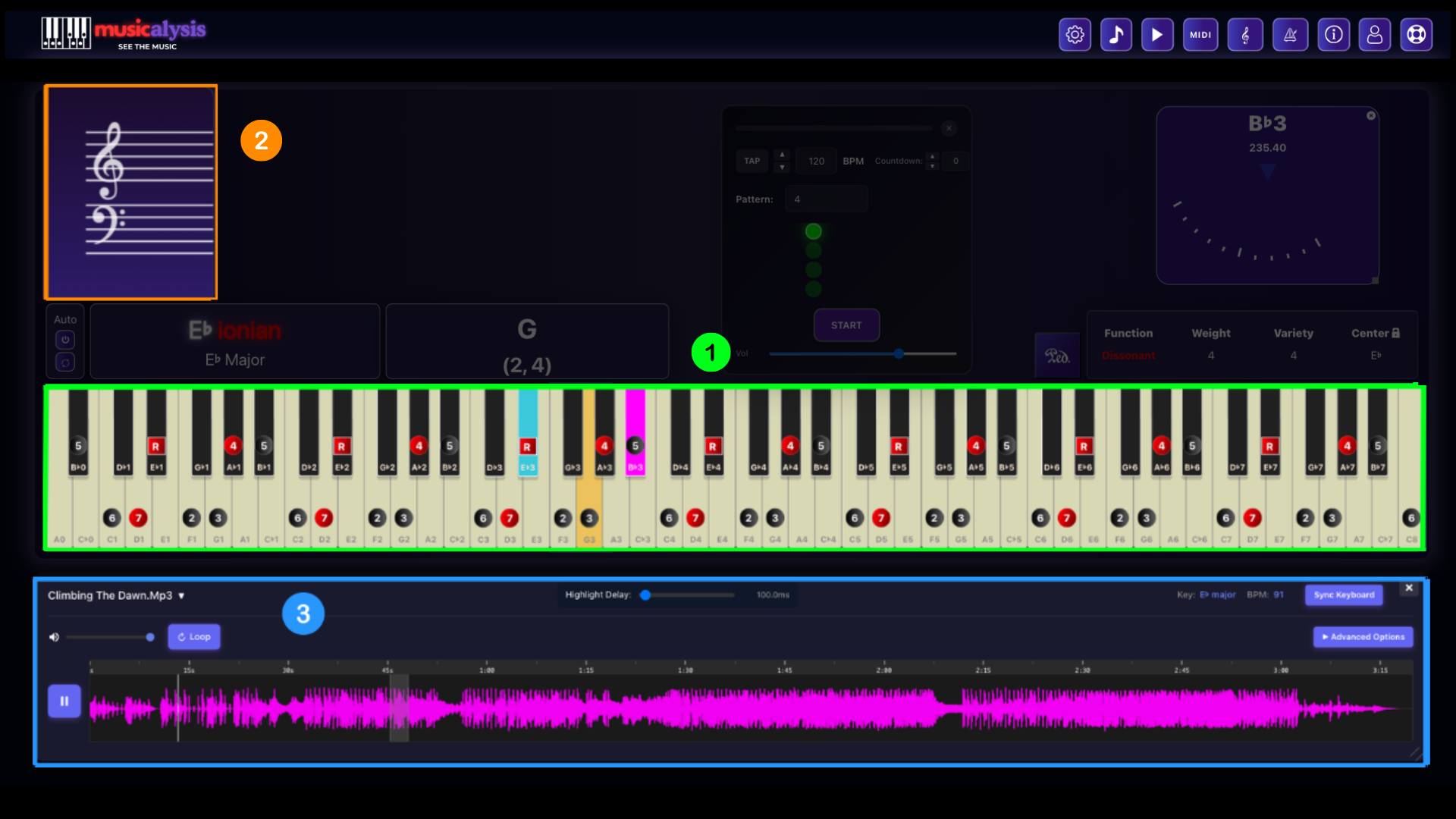
1. Virtual Piano Keyboard
The virtual piano keyboard displays detected notes from microphone, MIDI, and media player inputs in real time. You can manually select scales and modes, or enable the automatic detection switch to let Musicalysis analyze the scale and mode automatically from MIDI input. Alternatively, You can also click notes on the piano to hear their sound.
Tip:
Adjust your browser's zoom level to either view the entire piano at once or focus on a specific range for more detailed analysis. When the keyboard is not fully visible, hover over it to reveal navigation arrows, which allow you to move through different sections of the piano.
Tip:
Use keyboard shortcuts for quick navigation and scale/mode control. See the Navigation & Scale/Mode Control section below for a complete list of available shortcuts.
2. Navigation & Scale/Mode Control
Musicalysis includes keyboard shortcuts that let you navigate scales, modes, and note relationships quickly without using the mouse. These shortcuts only work when the Piano Keyboard is in focus. Using them together allows for fast, hands-on harmonic exploration.
| Shortcut |
Action |
| ← / → |
Move the scale by pushing the tonal root of the mode one step left or right. |
| Shift + ← / → |
Navigate through diatonic modes of the current scale. |
| Shift + ↑ / ↓ |
Move through scales stored in the song queue. |
| 1 – 8 |
Select notes from the currently active scale by degree. |
| ↑ / ↓ |
Push the selected notes up or down to generate a new scale. |
| Shift + 1 – 8 |
Change the root to the selected scale degree. |
| "n" |
Changes the meaning of the numbers inside by cycling the interval relationship meaning between: Root → Tonal → Center → None |
| Enter |
Add the currently displayed chord and scale to the song queue. |
| "0" |
Displays the Chromatic notes that are not part of the scale in white. |
| Shift + 0 |
Enables/Disables modal colors from the scale |
3. Music Staff
The music staff displays detected MIDI notes and chords in real time using traditional music notation. The staff is movable and, by default, shows only the current chord being played.
Hovering over the staff reveals additional controls, including Expand Staff. Expanding the staff allows you to freeze chords as you play, enabling comparison and analysis over time.
Use the keyboard shortcut "m" to cycle the meaning of the numbers inside the notes, switching between harmonic relationship, scale degree, and note name.
The media player lets you load and play audio files for analysis and practice. It includes playback controls, looping, waveform visualization, and timing reference. As audio plays, Musicalysis analyzes the signal and synchronizes pitch and note visualization with the piano keyboard and staff. You can perform pitch and tempo transformations to transpose the original song. To learn how to sing songs, perform stem separation first and analyze the vocal stem or other monophonic tracks.